Easy Guide to Android Gesture Shortcuts: Make Your Phone Faster
Do you want to use your Android phone faster and easier? Many people tap buttons or scroll too much when they could be doing things with simple finger movements. This is where gesture shortcuts help.
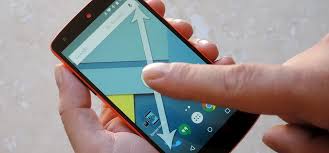
Gesture shortcuts let you swipe, tap, or draw on your screen to do actions quickly. You can go Home, switch apps, open your favorite app, or turn on Wi-Fi without pressing many buttons. Android has built-in gestures, and there are also apps that let you create extra gestures. This guide will show both in a clear, simple way.
What Are Gestures?
A gesture is a movement you make on your phone screen that tells it to do something.
For example:
- Swipe up → Go Home
- Swipe up and hold → See recent apps
- Swipe from the left or right → Go Back
- Swipe down → Open notifications
Gestures save time and make your screen look cleaner because you don’t need extra buttons.
Why Use Gesture Shortcuts?
Gestures are useful because they:
- Let you use your phone with one hand
- Make tasks faster
- Help on large-screen phones
- Protect buttons from wear
- Make your phone feel smoother
When you combine Android’s gestures with extra gesture apps, your phone can work much faster.
Built-In Android Gestures
Android phones running version 10 or higher have basic gestures built in. Here’s how to turn them on:
- Open Settings
- Go to System
- Tap Gestures
- Choose Gesture navigation
The three-button bar will disappear, and gestures will take over.
Main Built-In Gestures
- Swipe Up: Go Home
- Swipe Up and Hold: See recent apps
- Swipe From Left or Right Edge: Go Back
- Swipe Down: Open notifications or quick settings
Extra Settings
- Gesture Sensitivity: Adjust how sensitive the edges are so gestures work just right.
- One-Handed Mode: This moves the screen down so you can reach the top easily. It’s very helpful on big phones.
Apps That Add More Gesture Shortcuts
Built-in gestures are helpful, but you can do more with apps. These apps let you draw shapes, swipe edges, or use side triggers for quick actions.
1. Gesture Go
This app lets you draw shapes to do tasks. For example:
- Draw “Y” → Open YouTube
- Draw a circle → Open camera
- Draw a line → Call a contact
You can also use it to turn Wi-Fi on or off or open your favorite apps.
2. Fluid Navigation Gestures
This app adds side swipes, back taps, and other gestures. You can assign gestures to:
- Go Back
- Go Home
- Switch apps
- Open certain apps directly
It works well on phones without buttons.
3. One Hand Operation+
This app is great for using your phone with one hand. Side triggers can be set to:
- Open notifications
- Go Home
- Take screenshots
- Turn on flashlight
- Open your favorite apps
4. Navigation Gestures & Pie Control
This app adds fan-shaped pie menus that appear when you swipe. You can place shortcuts for:
- Home
- Back
- Recent apps
- Music controls
- Favorite apps
Pie menus make it easy to reach important actions quickly.
How to Set Up Gesture Shortcuts
Here’s a simple way to get started:
- Install one of the gesture apps from the app store.
- Open the app and give it the required permissions.
- Pick your gesture type: shape, swipe, pie menu, or side bar.
- Assign an action for each gesture, like opening an app or turning on Wi-Fi.
- Test your gestures in different apps to see how they work.
- Adjust sensitivity if gestures are too hard or too easy.
Start with 2–3 gestures so it’s easy to remember them.
Tips for Using Gestures
- Practice a little every day until the movements feel natural.
- Avoid gestures that look too similar to each other.
- Use long-press shortcuts on your Home screen for extra quick actions.
- Keep your screen clean, since gestures work better when the screen responds easily.
With some practice, gestures will feel natural, and your phone will feel faster.
Conclusion
Gesture shortcuts make using your Android phone easier and faster. Start with the built-in gestures to move around your phone, then add apps like Gesture Go, Fluid Navigation Gestures, One Hand Operation+, or Navigation Gestures & Pie Control to create more shortcuts.
In a few days, you can open apps, check notifications, switch screens, or control settings with a simple swipe or tap. Using gestures can save time and make your phone feel much smoother.
About the Author