HyperDroid – PC Launcher: Make Your Android Phone Look Like a Windows 11 PC
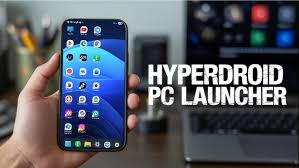
Have you ever wanted your Android phone to feel like a Windows computer? If you enjoy the look of Windows 11 and its Start Menu and File Explorer, then HyperDroid – PC Launcher is an app you should try. This free Android app changes your phone so it looks and works like a Windows 11 desktop. You can open apps in separate windows, multitask easily, and use a Start Menu just like on a real PC.
In this post, we will explain what HyperDroid is, its main features, how to install it, and tips to get the best experience.
What is HyperDroid – PC Launcher?
HyperDroid – PC Launcher is an Android app that transforms the look of your phone to resemble Windows 11. It is created by the developer binary inc. and is available on the Google Play Store.
With HyperDroid, your phone not only looks like Windows 11 but also works in a similar way. You can open apps from a Start Menu, organize files with a Windows-style File Explorer, and open multiple apps in separate windows.
This app is perfect for anyone who enjoys Windows or wants a computer-like experience on their Android device.
Main Features of HyperDroid
HyperDroid has several features that make your phone feel more like a Windows computer.
1. Windows 11 Look
The app copies the Windows 11 design. You will see:
- Desktop Layout: Icons on the home screen just like on a PC.
- Start Menu: Find and open apps quickly with a search bar.
- File Explorer: Manage your files with a Windows-style interface.
These features make it easier to organize your phone and find things quickly.
2. Customize Your Phone
HyperDroid allows you to change how your phone looks and works. You can:
- Change Wallpaper and Colors: Pick your favorite backgrounds and color themes.
- Resize Icons and Windows: Make things bigger or smaller.
- Switch Orientation: Use your phone in portrait or landscape mode.
- Add Web Apps: Add online tools like Photopea, an online photo editor, to your desktop.
You can adjust the look to match your style and make your phone feel unique.
3. Windows-Like Settings
The app also includes Windows-style settings. You can manage:
- Display and Storage: Adjust brightness and check available storage.
- Bluetooth and Personalization: Connect devices and change your desktop style.
- Launcher Updates: Keep the app updated with new features.
This makes the experience feel closer to using a real computer.
4. Multitasking
You can open multiple apps at the same time in resizable windows, just like on a PC. This allows you to:
- Chat with friends while browsing the internet.
- Watch videos while checking files.
- Move and resize windows to suit your needs.
This is helpful if you like doing several things at once.
Why Try HyperDroid
Here are the main reasons people like HyperDroid:
- Computer-Like Experience: If you use Windows on a PC, the interface feels familiar.
- Better Organization: The Start Menu and File Explorer make it easy to manage apps and files.
- Personalization: You can change the look and feel to suit your style.
- Multitasking: Open and work with multiple apps at the same time.
- Safe to Use: The app does not collect or share personal data.
This app is great for students, professionals, or anyone who wants a Windows-style interface on their phone.
Requirements
Before installing, make sure your phone is ready:
- Android Version: Must have Android 13.0 or higher.
- Storage Space: Ensure there is enough space for the app.
- Launcher Permission: You need to set it as the default launcher.
How to Install HyperDroid
Installing HyperDroid is simple. Follow these steps:
- Open the Google Play Store.
- Search for “HyperDroid – PC Launcher.”
- Tap Install.
- Open the app after installation.
- Set it as your default launcher: Go to Settings, then System, then Default Launcher, and choose HyperDroid.
Once set, your phone will immediately look like a Windows 11 PC.
Tips for the Best Experience
To get the most out of HyperDroid:
- Use a Bigger Screen: Tablets or large phones give a better desktop feel.
- Add Web Apps: Add tools like Google Docs or Photopea for quick access.
- Try Different Wallpapers: Change backgrounds to match your style.
- Adjust Settings: Experiment with window sizes and layouts for comfort.
- Keep the App Updated: Updates bring new features and fixes.
User Reviews
HyperDroid is popular and well-rated.
- Rating: 4.4 out of 5 stars on the Google Play Store.
- Downloads: Over 1 million users.
- Reviews: Many users praise the Windows-like design and customization options.
People say it is one of the best apps to make Android phones feel like a computer.
Safety and Privacy
The developer states that HyperDroid does not collect or share personal data. It only helps organize apps and the desktop, making it safe for all users, including students and children.
Alternatives
Some other apps try to make Android phones look like Windows:
- Launcher 10 – a Windows-style launcher.
- Win 11 Launcher – mimics Windows 11.
- Computer Launcher – gives a PC-style desktop interface.
HyperDroid is unique because it has a Start Menu, File Explorer, and multitasking windows similar to a real PC.
Conclusion
HyperDroid – PC Launcher is a great way to make your Android phone feel like a Windows 11 computer. It has a Start Menu, File Explorer, multitasking windows, and many options to customize your phone. It is easy to use, safe, and fun.
About the Author